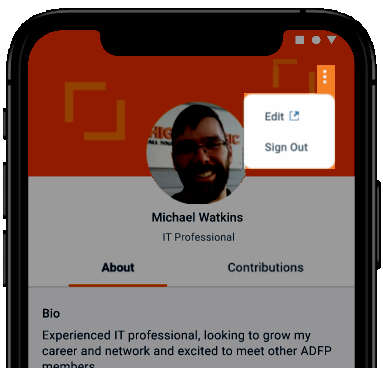
Much like Facebook or LinkedIn, your Community account includes a profile, where you can perform a number of actions like:
- viewing your profile information,
- updating your profile picture,
- configuring privacy settings and email preferences,
- and more.
View your profile
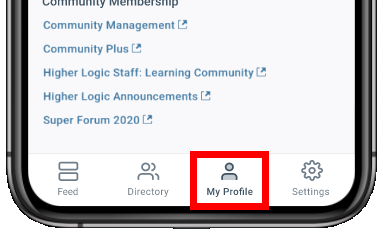
Tap the My Profile icon at the bottom of the screen.
The mobile profile experience
The profile actions you can perform within the mobile app are limited to:
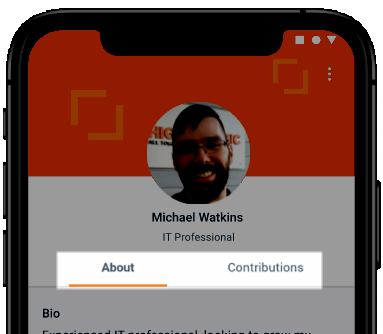
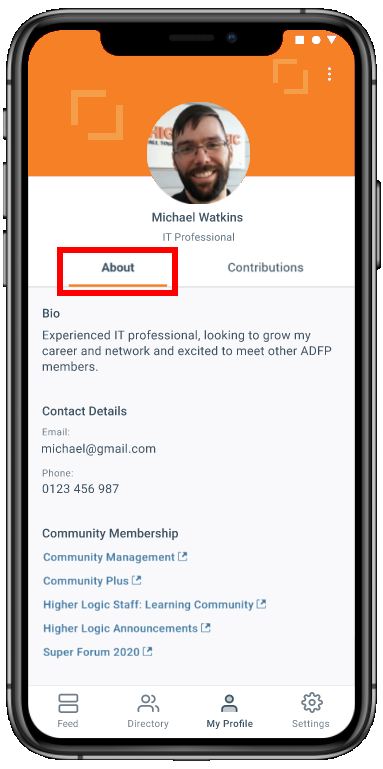
- Viewing your profile information on the About tab
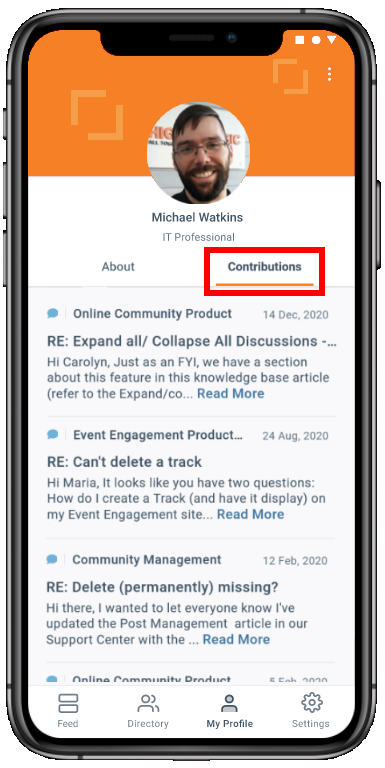
- Viewing the content you've contributed to the community on the Contributions tab
About tab
Your profile's About tab displays the information you've shared about yourself, like your bio and contact information. In addition, it lists all of the communities to which you're a member, making it an excellent way to see what communities you're a member of
NOTE: Refer to the Edit your profile section below to learn about this process in the mobile app.
Contributions tab
The Contributions tab shows all of the content you've contributed across your community site in a single, scrollable list.
- Only a portion of your contributions will load at a time; additional content will automatically load each time you scroll to the bottom of the list.
Tap a piece of content to view it.
- Discussions, questions, and library entries are viewed directly in the app.
- Conversely, announcements and blogs are listed as external links.
Edit your profile
It's not possible to edit your profile information and settings within the mobile app; however, tap the vertical ellipsis to view a menu with an Edit option. Tap this external link to navigate to your full Higher Logic community site to manage your profile.
NOTE: See this article to learn everything you need to know about managing your profile.